
Create a Filter in Jira: A Practical Guide for Modern Teams

To create a filter in Jira, navigate to the 'Issues' screen, use the search dropdowns to define your criteria, and click 'Save as' to name your filter. This simple action transforms a chaotic backlog into a focused, actionable list—making it a powerful way to boost your team's efficiency.
Why Mastering Jira Filters Unlocks Team Productivity
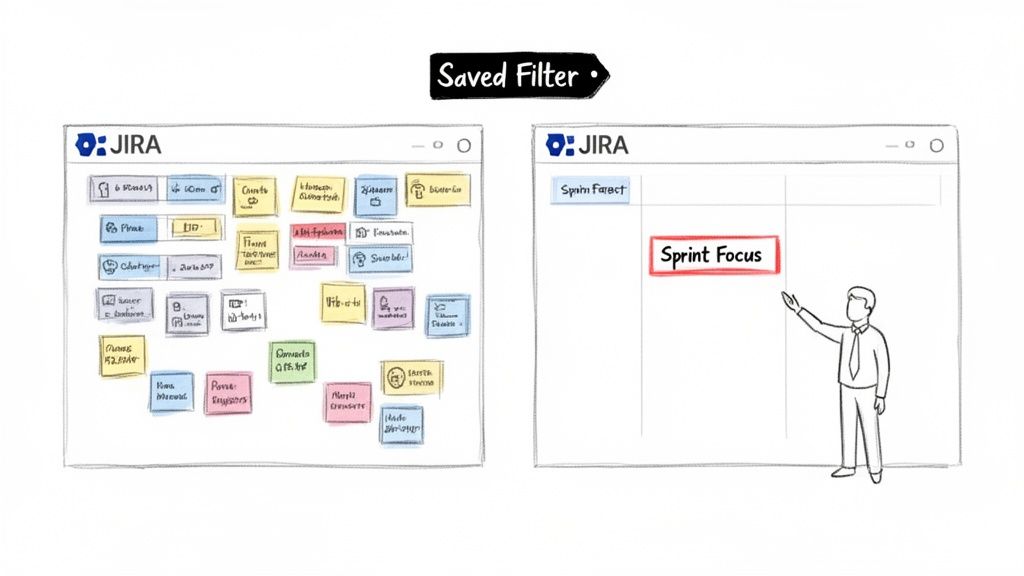
We've all faced a massive, unfiltered Jira backlog. It's a digital wall where critical tasks get buried, causing project anxiety. Learning to create a filter in Jira isn’t just a technical skill; it's the first step to bringing order and clarity to your projects.
For example, a project manager preparing for sprint planning can apply a single filter to instantly see all unassigned, high-priority stories. Filters turn noise into a clear signal, providing immediate focus for your team.
The Foundation of Jira Workflows
Saved filters are the building blocks for nearly every advanced feature in Jira. For any technical role—from developer to DevOps engineer—mastering filters is non-negotiable.
They are the engine behind key Jira functionalities:
- Dashboards and Gadgets: Filters power the charts and lists on your dashboards, providing at-a-glance status updates.
- Agile Boards: A Jira filter is the core of every Scrum or Kanban board, defining exactly which issues are displayed.
- Automation and Subscriptions: Filters define the trigger conditions for automation rules and scheduled email reports, keeping teams updated without manual intervention.
Beyond boosting team output, it's worth exploring broader strategies to improve team productivity to build even more efficient workflows. By making information accessible and relevant, filters directly contribute to better team dynamics and results.
Building Your First Jira Filter: From Basic to JQL
You have two methods to build a filter in Jira: the simple point-and-click Basic search and the more powerful Advanced search using Jira Query Language (JQL). Start with the Basic view. Its dropdown menus let you achieve quick wins immediately.
Navigate to the main issue search screen and you'll find fields for Project, Issue Type, Status, and Assignee. Use these to answer simple, everyday questions without writing any code.
For instance, a product manager can select their project, choose the 'Bug' issue type, and set the status to 'New'. Instantly, they have a list of all newly reported bugs. This immediate feedback is what makes Jira effective for daily task management.
Moving from Clicks to Code with JQL
Once you're comfortable with Basic search, level up by clicking the "Switch to JQL" link. Jira automatically translates your dropdown selections into a JQL query, offering a practical way to learn the syntax.
This is where you unlock Jira's true power and solve complex, role-specific problems.
For anyone on a software development, QA, or DevOps team, learning JQL is essential. Well-crafted filters let you slice through massive backlogs and zero in on exactly what you need, whether it's by assignee, status, priority, or any custom field.
The ability to create and share filters has been a core part of Jira since the beginning. Today, Jira is used on 42,781 websites worldwide. It’s especially critical for larger organizations; a solid 1.1% of the top 10,000 websites depend on Jira to keep their operations running smoothly. If you're curious, you can explore the full Jira statistics and see the data for yourself.
Actionable JQL Queries for Development Teams
Here is a quick reference table with copy-and-paste-ready JQL queries that software, QA, and DevOps teams can use immediately.
| Team Role | Goal | Example JQL Query |
|---|---|---|
| DevOps Engineer | Find all 'In Progress' deployment tickets for a specific release. | project = "PROJ" AND issuetype = "Task" AND status = "In Progress" AND fixVersion = "Release 2.5" |
| QA Engineer | Isolate unassigned critical bugs reported in the last 7 days. | project = "PROJ" AND issuetype = "Bug" AND priority = "Critical" AND assignee IS EMPTY AND created >= -7d |
| Developer | View all open stories assigned to you in the current sprint. | project = "PROJ" AND assignee = currentUser() AND status not in (Closed, Resolved) AND sprint in openSprints() |
These queries are excellent starting points. Tweak them to match your team's specific projects, issue types, and workflows.
Once your query returns the desired issues, click the "Save as" button at the top of the search results. Give your filter a descriptive name, like "QA – Unassigned Critical Bugs – Last 7 Days," so you and your team can easily find it later. With one click, your custom query is saved and ready for reuse.
Sharing Filters and Managing Permissions Effectively
You've built the perfect filter. Its real power is unlocked when you share it, turning a personal query into a shared source of truth for your team. However, incorrect permissions can create a messy, confusing Jira instance.
The moment you hit "Save," Jira will prompt you to set permissions. Don't rush this step. If the filter is for your personal to-do list, keep it Private. If it defines your team’s sprint backlog, share it so everyone is aligned.
Deciding between a basic search and JQL often comes down to complexity. This flowchart breaks it down.
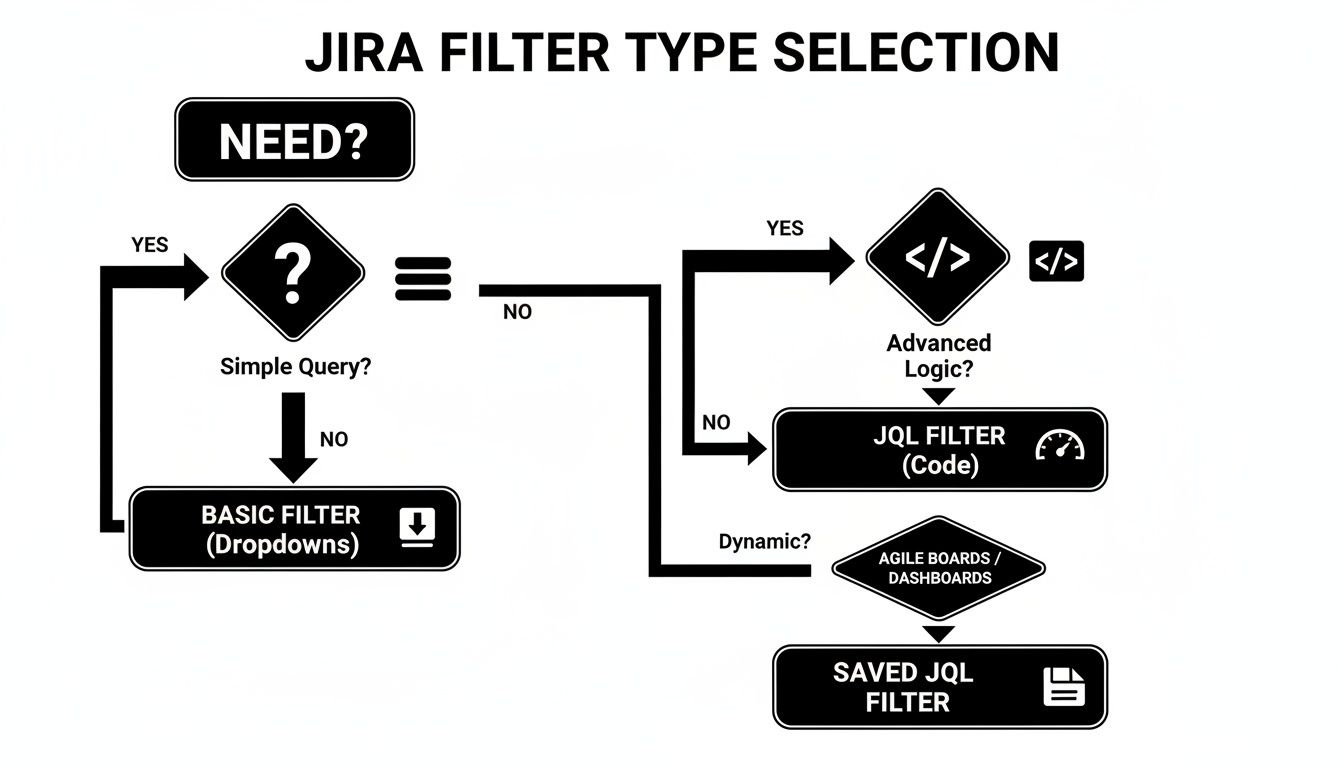
As you can see, basic dropdowns are great for straightforward searches. For anything with multiple conditions or nuanced logic, jump straight into JQL.
Choosing the Right Sharing Level
Jira provides several sharing options. Think carefully about who needs access before granting it.
- Group: The best choice for sharing with a specific team, such as 'UX-Designers' or 'Backend-Devs'.
- Project: Ideal for filters that everyone on a project needs, like a 'Release 4.2 Bug Triage' filter.
- Public: Use this with extreme caution. Public makes the filter visible to everyone on your Jira site, which can create significant clutter.
Pro Tip: Set Up Filter Subscriptions
Subscribe to a filter to receive its results in your inbox on a set schedule. For example, a support lead can get a daily 8 AM email listing all new high-priority tickets, ensuring nothing is missed at the start of the day.
Bringing Your Filters to Life on Dashboards and Boards
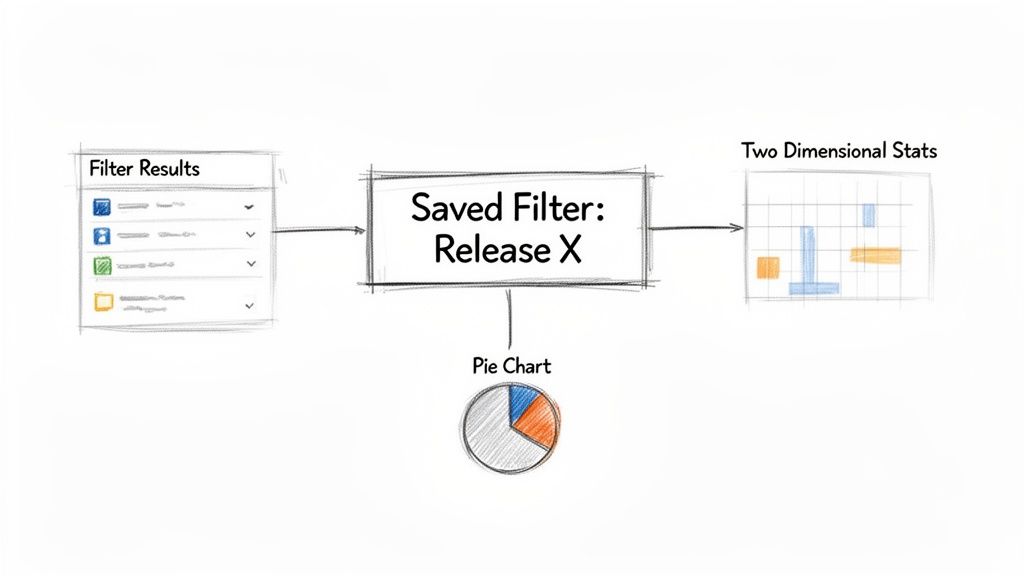
Saved filters are the engines that power Jira’s visual tools. Once saved, a filter can be plugged into dashboards and Agile boards to transform raw data into an at-a-glance overview for your team.
Think of your dashboard as a real-time command center. By connecting a filter to a gadget, you can turn a long list of issues into a visual story that is instantly understandable.
Powering Dashboard Gadgets
A product manager can build an entire release dashboard using a few key filters paired with different gadgets.
- Filter Results Gadget: Use a filter like "New Feature Requests – Release 3.0" to display a clean, sortable list of incoming ideas.
- Pie Chart Gadget: Apply a filter for "Release 3.0 – All Issues" and set the gadget to visualize issue statuses. This provides an instant breakdown of work that is in progress, in review, or done.
- Two Dimensional Filter Statistics: Use a broad filter like "All Team Tasks" and configure the gadget to plot Assignee against Priority. This helps identify who has the most high-priority work.
This ability to visualize data addresses a long-standing need in the Jira community for better ways to get specific counts, like how many issues are assigned to each person. Now, with filters driving these gadgets, teams can get the exact stats they need to manage projects where 68% of issues might be flagged as Major priority. For more on this, the Atlassian community has some great discussions.
Defining Agile Boards
For any team using Scrum or Kanban, a single filter serves as the source of truth for their Agile board. The JQL query behind that filter dictates exactly which issues appear. This gives you complete control over your team’s focus.
The filter behind a board is its constitution. Modifying that filter directly changes what the team sees and works on every single day. This is how you create specialized, high-visibility views for different project needs.
For instance, if your board is cluttered with old tickets, tweak its filter to exclude resolved issues older than 30 days. To create a hyper-focused view, change the board’s filter to pull in only the issues from a single epic, isolating all related stories and sub-tasks.
Pairing targeted filtering with smart workflows allows you to automate how issues move across the board. For a deep dive into that, check out our guide on Jira workflow automation.
Advanced JQL Functions and Filter Best Practices
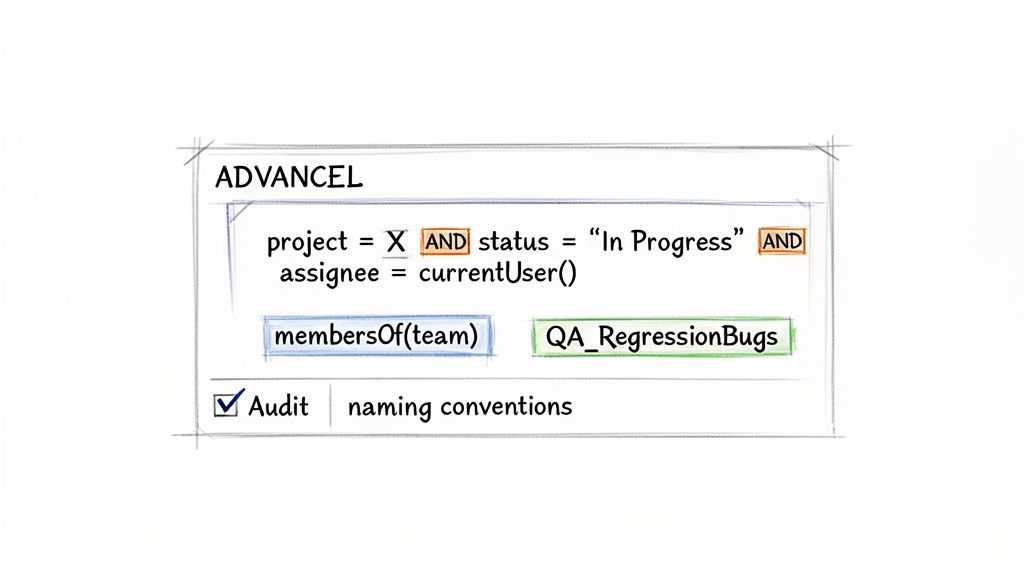
To elevate your Jira skills, move beyond static queries and use dynamic JQL functions. These let you build smart filters that adapt to the user, eliminating the need for manual updates. This is the key when you need to create a filter in Jira that works for your entire team with a single query.
For example, assignee = currentUser() creates one "My Open Issues" filter that shows each user their own assigned issues. Similarly, reporter in membersOf("QA-Team") pulls all issues reported by anyone in that group and stays current as team membership changes.
Establish Smart Naming Conventions
As your Jira instance grows, the list of saved filters can become disorganized. A strategic naming convention is crucial for keeping filters discoverable and easy to understand.
A simple, effective format is TEAM_Purpose.
- QA_RegressionBugs: Identifies a filter for the QA team tracking regression bugs.
- DEV_SprintSpillovers: A developer-focused filter for monitoring work carried over from the last sprint.
- SUPPORT_Tier1-Escalations: Clearly shows the support team which tickets have been escalated to them.
This structure makes filters scannable and immediately understandable.
A clean Jira instance is a productive one. Regularly audit your filters to reduce clutter so your team can find information without sifting through obsolete queries. Set a calendar reminder to review and delete unused filters quarterly.
Maintaining Filter Hygiene and Automation
A long-standing challenge for Jira admins is the lack of a built-in method to track filter usage. Since at least 2023, teams have sought ways to identify unused filters, boards, and dashboards. This has led to creative solutions, like using Jira Automation with smart values like {{issues.size}} to log issue counts and approximate usage. The community is always finding new ways to tackle Jira statistics challenges.
Connect your filters to Jira Automation rules to trigger entire workflows. For example, a filter for "Bugs with 'Ready for QA' status" can automatically transition the issue and notify the QA team on Slack as soon as a ticket matches the criteria, creating seamless handoffs.
Got Questions About Jira Filters? Here Are Some Answers
Here are answers to some of the most common questions about working with Jira filters.
How Do I Find a Filter Someone Shared with Me?
To find a shared filter, go to the Filters menu in the main navigation and select "View all filters." Use the search bar to find the filter by name or creator. For frequently used filters, click the star icon to add it to your favorites, which appear directly in the Filters dropdown for quick access.
Can I Edit a Jira Filter Created by Someone Else?
You can only edit a filter if the owner has explicitly granted you edit permissions. In most cases, you won't have them.
The best workaround is to open the filter, switch to the JQL view, and copy the entire query. Then, create a new filter of your own and paste the query. This gives you a personal, editable version to modify.
A quick tip on JQL errors: 90% of the time, they are simple syntax mistakes. Check for a single equals sign (=) instead of an operator like
INor~(CONTAINS), or missing quotes around names with spaces. Jira's query validator will highlight the exact problem for you.
How Can I See All Issues Assigned to My Team?
The most effective method is using the membersOf() JQL function. First, ensure your team is set up as a user group in Jira (e.g., "dev-team").
Once the group exists, create a filter with the query: assignee in membersOf("dev-team"). This filter is dynamic; it automatically updates as users are added to or removed from the group, requiring no manual changes.
At Harmonize Pro, we build Jira apps that turn complex processes into automated, transparent workflows. Our app, Nesty, helps teams enforce quality gates and automate handoffs with dynamic nested checklists and smart triggers, all within a single Jira ticket. Streamline your Dev→QA handoffs, deployments, and customer onboarding by visiting us at https://harmonizepro.com/nesty.